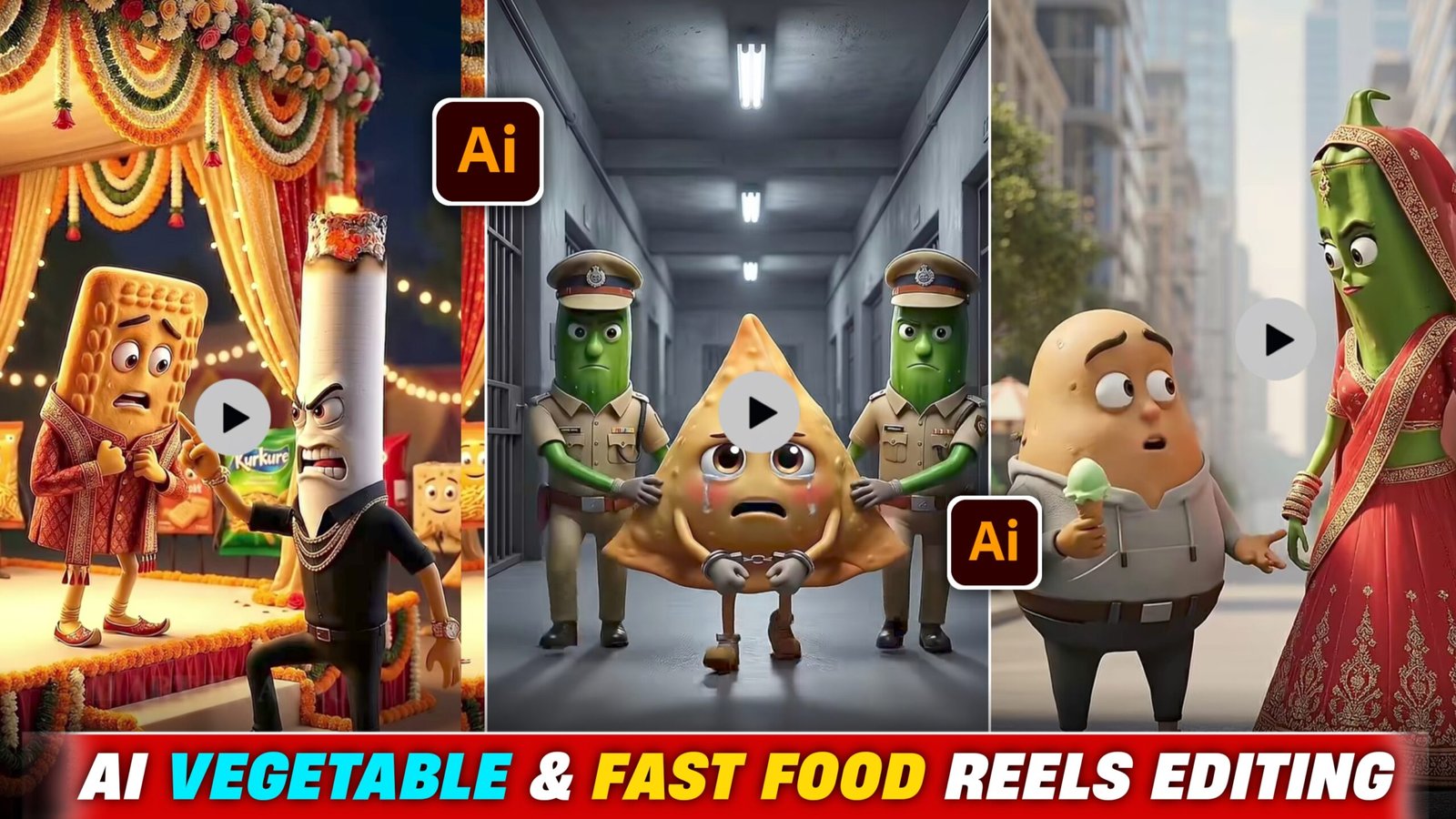
So friends, at present, vegetable object explain reel on Instagram and shorts on YouTube are becoming very viral but no one is telling its real method But in today’s post I will tell you its real method, you just follow the steps told by me and read the article carefully and understand it. By making such videos, people are growing their accounts rapidly and many people are also making such funny breakup videos, like in some video potato is breaking up with peas. And people are also liking to watch such shorts and reels because when the things we do explain the story of our life, there is a different fun in watching them. So just follow the steps given by me, do not miss any step because this is a bit big step.
Details Ai Vegetable & Fast Food :-
So, if you want your video or reel to go viral, this is the best time to make it viral because it’s trending right now, and a video only goes viral when it’s trending. Because when that reel appears in everyone’s feed, it has a higher chance of going viral. Just follow my steps and read and understand the article carefully. But don’t delay in using this trend because otherwise it won’t go viral. And the best part is that it’s completely free! You heard it right, it’s absolutely free. I’ve posted on this topic before, but in that post, I mentioned that you can choose anything, like mobile, car, anything, but in this, you’ll only get a prompt to explain vegetable and fast food object.
Background =(),
Impact = NegativeCreate a detailed Text-to-Video prompt strictly optimized for Google Veo 3.
If Background is empty, automatically choose the most suitable and realistic background.
If Impact is not provided, treat it as NEGATIVE by default.
GLOBAL CONSTRAINTS (STRICT):
Model: Google Veo 3
Total duration: EXACTLY 8 seconds
Scene count: ONE single continuous scene
Camera: STATIC (no zoom, no pan, no cut)
Lighting: constant
Audio: single object voice only
NO subtitles, NO captions, NO on-screen text
ALL spoken dialogue MUST be ONLY in Hindi (Devanagari script)
Dialogue must be SHORT and fully completed within 8 seconds
VISUAL STYLE:
3D cartoon
Clean, colorful
Educational and family-friendly
SCENE DESCRIPTION:
One static shot for the full 8 seconds
Object is anthropomorphized and speaking
No scene change, no camera movement
DIALOGUE RULE:
Object must clearly state EXACT impact
No vague words like “परेशान करता हूँ”
TIMELINE & LOGIC (8 SECONDS TOTAL):
IF Impact = NEGATIVE:
Seconds 0–3 (Exact harm – Hindi, audio only):
“मैं __ हूँ। मैं __ करता हूँ।”
Seconds 3–5 (Solution spoken by the SAME object – Hindi, audio only):
“मुझसे छुटकारा पाने के लिए मेरे ऊपर ___ डाल दो।”
Seconds 5–8 (Action – no dialogue):
The exact solution mentioned falls / sprays / applies from above
On contact, the object disappears / runs away / dissolves
Non-violent cartoon-style effect
Scene ends clean and problem-free exactly at 8 seconds
IF Impact = POSITIVE:
Seconds 0–4 (Benefit – Hindi, audio only):
“मैं __ हूँ। मैं तुम्हें __ फायदा देता हूँ।”
Seconds 4–8 (Usage instruction – Hindi, audio only):
“मुझे ऐसे उपयोग करो / मुझे ऐसे खाओ।”
Visual shows healthy, clean, positive result
Scene ends exactly at 8 seconds
FINAL OUTPUT RULES:
Output ONLY a Veo-3-ready Text-to-Video prompt
No explanations, no headings, no extra text
Must strictly fit into one 8-second single scene

How To Create Video :-
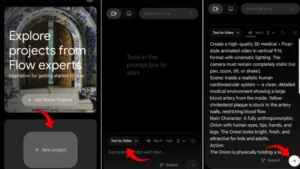
- First of all, you have to click on the create video button.
- Now you have to click on New Project, then click on the option listed and select text to video.
- And you have to paste your prompt and send it.
- And your video will be ready in a few seconds
How to sign in on the Flow AI website?
So friends, to make drone videos, you will have to sign up on this flow ai website. To sign up, I will tell you below how to do it.Photo editing apps
- First, you will see the homepage where you need to sign in using any Google account, as there are currently no options to sign in or sign up with Facebook, Apple ID, or Gmail. So, you can only log in through your Google account.
- After signing in with your Google account, click on the plus (+) icon. You will then see options like Text to Image and Frames to Video. Click on the “Frames to Video” option, select the aspect ratio that suits your needs, and enter your prompt
Conclusion :-
So friends, I have told you everything about how you will get the prompt,how the image will be created, how the video will be generated the whole process. If you have read the articles correctly and attentively, you will also be able to create such images and video. And if you quickly upload the article without reading it, you will definitely face some problem in the process of creating your image, or process of creating your video but you have read the article properly and followed the steps given. Even then if you are not able to make such an image to video then don’t worry you have to go to my Instagram or YouTube, Instagram is Vmeditor01 and YouTube ID is VM Editor you have to go to any of the two. And you have to watch Trending Ai fruits healt editing reel or video and follow the ID and subscribe to the channel.So you too should go viral by creating such images or video