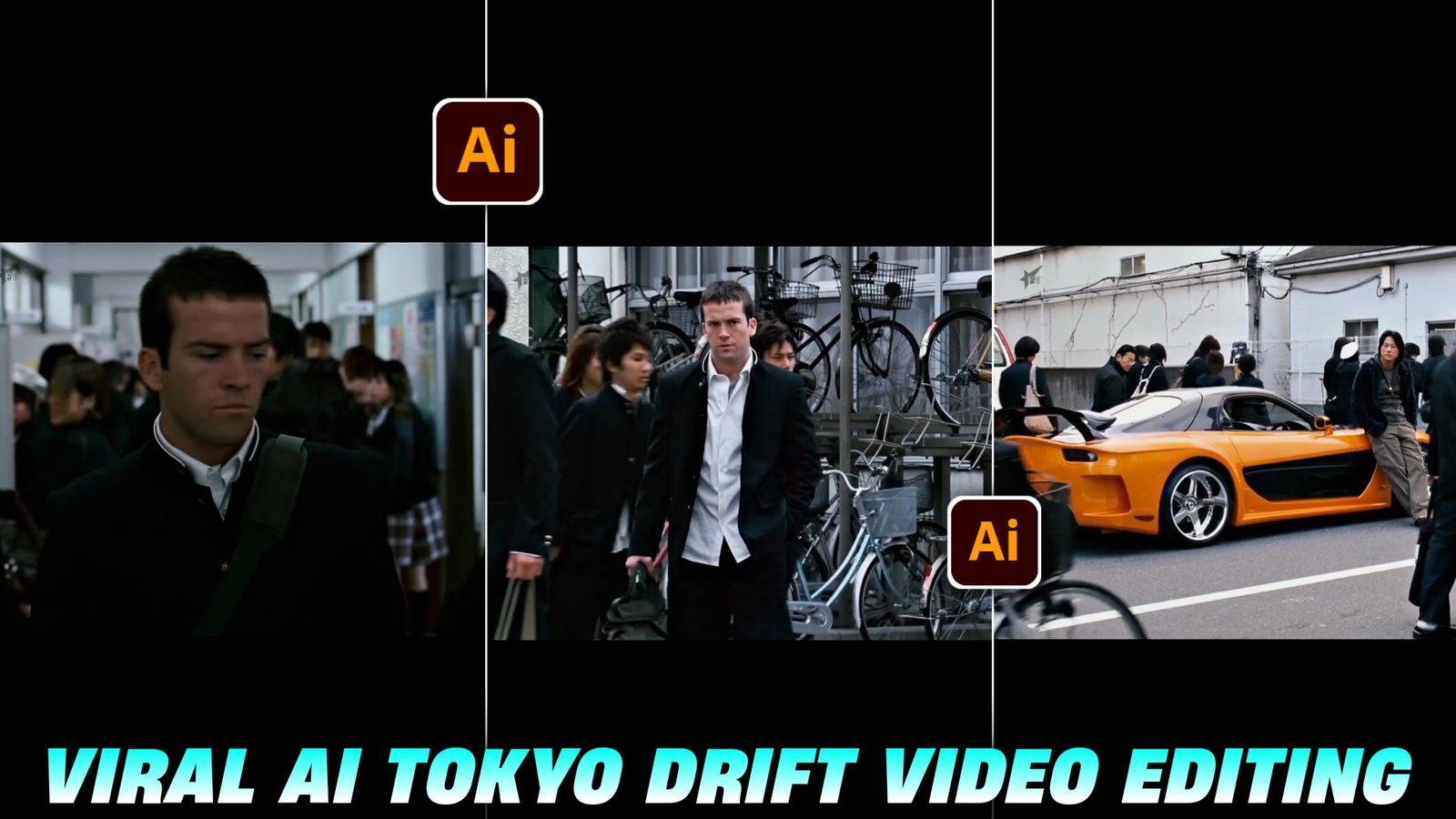
Tokyo drifit Ai Reels edits Tutorial – So friends, at present, this kind of Tokyo Drift video editing is rapidly going viral on Instagram. Using photos of your favorite celebrities, it looks very realistic and good. People are making such videos and posting them on their social media platforms, which are getting millions of views and millions of likes on their videos. Seeing such videos, everyone wants to make such videos, but they don’t know how to make them, and no one tells them the correct process. So, in today’s article, I’m going to show you how to edit this kind of viral Tokyo Drift video and will also explain all the steps step by step, which you will understand. You can also make such videos very easily, that too in just a few minutes. If you want to edit such a video, then read this article carefully, only then you will understand everything.
Details Tokyo drifit Ai Reels edits Tutorial
So friends, if we talk about this kind of viral Tokyo Drift I video editing, then people are liking this kind of video very much on social media and people also want to make such videos and this video is trending so much that whoever is making and uploading such videos, their videos are getting a good number of views and you all know that whatever is trending on Instagram, if you people take advantage of this trend, you can also gain millions of views, likes and followers. If you make a video on it, then your video will also go viral because Instagram’s algorithm gives a big boost to the trend that is going on, so now this trend has just started, so you people should take advantage of the trend in time and make videos on it and how to make it, I am going to tell you in this article what is the process, what prompts will be required, how to make it, let me tell you.
Download Video clips
How To Edit Tokyo Drift Video
So, to make such a video, I will tell you some steps below, you have to follow them, then you can make such a video very easily, so read all the steps carefully.
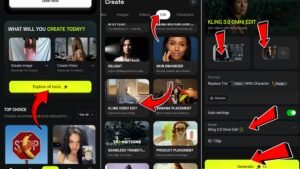
- First of all you have to click on the generate video button.
- Sign up on the Higgsfield AI website And then you have to click on the Explorer tool button below.
- And then you have to click on the edit option above and click on the editing video option below.
- And here you have to upload the first clip of the original volume puri, which I will give you the video below, you have to download it, then you have to upload the image of the character as well and here the prompt You have to put the video properly with @ and then in the model you Kling Video Edit (Kling 3.0 Omni Edit select
- Then you have to type on the generate option, your video will be generated, download it and you can download other videos also.
Car & Character Image Create:-
If you want to create a trending AI image with a car and a character standing next to it, follow these simple steps.
Step 1: Download Required Images
- Before starting: Go to Pinterest or GoogleDownload: A high-quality car image A high-quality character image
- Make sure both images are clear and high resolution for better results.
Step 2: Open Banana AI Website
- Visit the Banana AI / Higgsfield website
- Click on Explore All Tools
- Go to the Image section
- Select the model Nano Banana Pro
Step 3: Upload the Car Image
- Click the + (Plus) icon
- Upload the car image first
- Make sure the image is properly visible in the preview
- Upload the Character Image
- Click Upload again
- Upload the character image
- Now both images should appear in the asset panel
Step 4: Copy the Prompt
Step 5: Adjust Settings
Choose Aspect Ratio (9:16 for Reels, 16:9 for YouTube)
Step 6: Generate the Image
- Click Generate
- Wait for processing
- Download the final generated image
How to Turn Car + Character Image into Video (Short Steps)
I have told you the steps to make the video in the article above, so follow the same process here too, so you can watch it.
- Click Upload Video and upload your car background video.
- Click Upload Image and upload your generated Car + Character image.
- Turn Auto Settings ON Select quality (720p or 1080p) Click Generate
In the prompt box, write:
Now your video clips are ready to be banked. Add them all to any video editing app.
Conclusion
So friends, today I will tell people the process of editing such trading videos. By following all the steps mentioned by me, you will be able to create the video.Perhaps I will come across this to you and you may also know that I have made such a video, so perhaps you will find this article completely helpful, so I will meet you in another new article with such trading editing.