So friends, in today’s article, I am going to show you how to edit a specific type of Reel the kind you have likely seen that tells a person’s story: highlighting their struggles, their journey to gaining a massive following, and the fulfillment or impending fulfillment of their dreams. Reels edited in this style are going viral rapidly. Instagram creators are using their own photos and videos to craft these Reels, garnering hundreds of thousands of views and likes in the process. If you are also an Instagram creator who makes Reels, you can create similar videos sharing your own story and do so very easily. In this article, I will walk you through the entire creation process in a simple, step-by-step manner so that you can make these videos, post them on social media, and potentially have your Reels go viral too. Let me explain it to you.
Details Of Viral Social Media Creator Edit
If we talk about this type of viral reel edit, you have likely come across videos that tell a short story showcasing the creator’s journey from the very beginning to the present. These videos depict when they started making content, the struggles they faced, the obstacles encountered along the way, and the mockery they endured when they had no support. Yet, today, their hard work has paid off immensely, and they have carved out a unique identity for themselves. People really love this kind of content, and while everyone wants to create such videos, many don’t know the exact process involved. Well, I am going to explain the entire process to you, step by step. Let’s get started.
Why Is Viral This Type Edit
The reason this type of video goes viral is that it showcases the struggles faced by social media influencers and creators; a single Reel captures their entire journey the obstacles they encountered, the hardships they endured, and their ultimate success. People love watching such stories as they find them highly motivating. Since everyone today wants to join social media and create videos or Reels, these clips serve as a major source of inspiration, prompting others to create similar content to establish their own unique identity. If you would like to make one too, you can create a video that includes your name, photo, village, and district. I am going to explain the entire process to you.
Real Editing Process: Voice to District & Village Name All Manual Editing
Social Media Creator Voice Generate Script
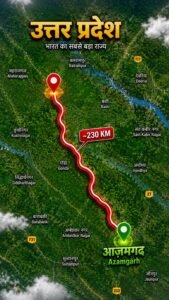
The entire [STATE NAME] state map should be the MAIN focus of the image. Show the complete and recognizable geographical boundary of the state with realistic satellite terrain, green agricultural fields, rivers, roads, towns and natural land details.
At the top, add a large premium 3D golden Hindi title:
“[STATE NAME]”
Below the title, add a small elegant subtitle:
“भारत का राज्य”
Inside the state map, choose a suitable starting location and place a RED location pin there. Do NOT write the name of the starting city/district. The red route should begin exactly from this pin.
Create a realistic glowing RED route line traveling across the state toward [DISTRICT NAME]. The route should look like a real road/travel direction, with natural curves and a subtle white inner glow.
At the destination, place a large GLOWING GREEN location pin on the exact approximate geographical position of [DISTRICT NAME].
Next to the green destination pin, prominently write:
“[DISTRICT NAME]”
“[DISTRICT NAME IN ENGLISH]”
The district name must be clearly readable
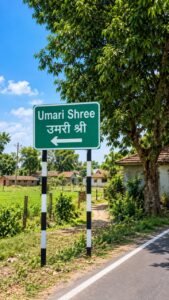
Place a realistic green Indian road direction signboard prominently in the foreground, mounted on two black-and-white striped poles.
The signboard MUST display the village name in BOTH languages:
Top line: “[VILLAGE NAME IN ENGLISH]”
Second line: “[गाँव का नाम हिंदी में]”
Below the two-line village name, add a clear white LEFT-pointing arrow.
IMPORTANT TEXT RULES:
– English village name must be written exactly as provided.
– Hindi village name must be written exactly as provided.
– Do not change, misspell, distort, merge, or invent any letters.
– Keep English on the first line and Hindi directly underneath it.
– The text must be large, bold, clean, centered and perfectly readable.
– Do NOT add any other text to the signboard.
Behind the signboard, show a beautiful authentic Indian rural village with small houses, tiled roofs, dirt paths, green agricultural fields, trees, plants, fences and a peaceful countryside atmosphere. Include a paved road beside the village with realistic road markings.
Bright natural daytime sunlight, blue sky with soft white clouds, realistic shadows, highly detailed greenery, authentic Indian village architecture, natural colors, realistic camera perspective, DSLR photography, photorealistic quality.
Every generation should have a slightly different village layout, houses, trees, road position, background and camera angle while keeping the same signboard concept.
No people, no watermark, no logo, no extra text.
Vertical 9:16 aspect ratio.
How To Use All Prompt
So to create such an image as you see, you just have to change your district and village in it and whatever blank space I have given you there, you just have to write your name in it. You just have to keep in mind that you have to fill your name, district name, village name etc. in the blank space only. Simply copy the prompt and head over to ChatGPT; paste it there to generate an image featuring your district or village name, which you can then save. As for generating the voice, you can use ElevenLabs. You will find a character named ‘Bunty’ there—I have provided the link—so you can go directly to the site and use that voice to generate the audio.
How To Edit Viral Social Media Creator Story Video
So friends, to edit this kind of “social media creator journey” video, I first explained the process of generating the voiceover based on the script—so go ahead and generate that audio. Next, generate images of your district and village; I will also provide links to all the specific images you need to use in the video, so make sure to download them. You can use apps like VN or CapCut for editing. Open CapCut and first import the audio. Then, add the village and district images you generated (using ChatGPT), along with your personal photos and the ones I provided for download. Arrange all the photos to match the voiceover, trimming them according to the timing. Add transitions between the photos and include a “glitch” sound effect. You can apply animations and transitions of your choice to the photos and add your name at the bottom. Once that’s done, your video will be ready with a professional look, and you can export it.
Template Editing Process But This Is NOT the Real Trick!
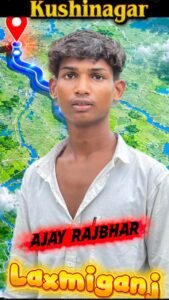
How To Use Template:-
So, you can create such videos using a template, and you can also edit them yourself. Let me explain the process of editing using a template. I will outline the steps for using the template below, and you need to follow them carefully.
- First you need to connect your phone to Proton VPN
- Once the VPN is connected just close or log out of the VPN app
- After that open my website through Google
- There you will see a Use Template button just tap on it
- As soon as you tap it the link will automatically open in the CapCut app
- Inside CapCut select the template you want to use
- Then tap on the Next option And you have to select your video or photo.
- Your video will start processing
- Give it a few seconds and the edit will load with all effects in smooth slow motion
- After that you can export the video without any watermark
- Just tap the export icon and your final video will be saved directly in your gallery
Conclusion
So friends, in today’s article, I’ve provided a complete tutorial on editing the kind of viral social media journey Reels that are currently trending, along with a template you can use to easily create your own version and tell your unique story using your own voice. I’ve explained the entire process so go ahead, create these videos, and post them on your social media platforms.