
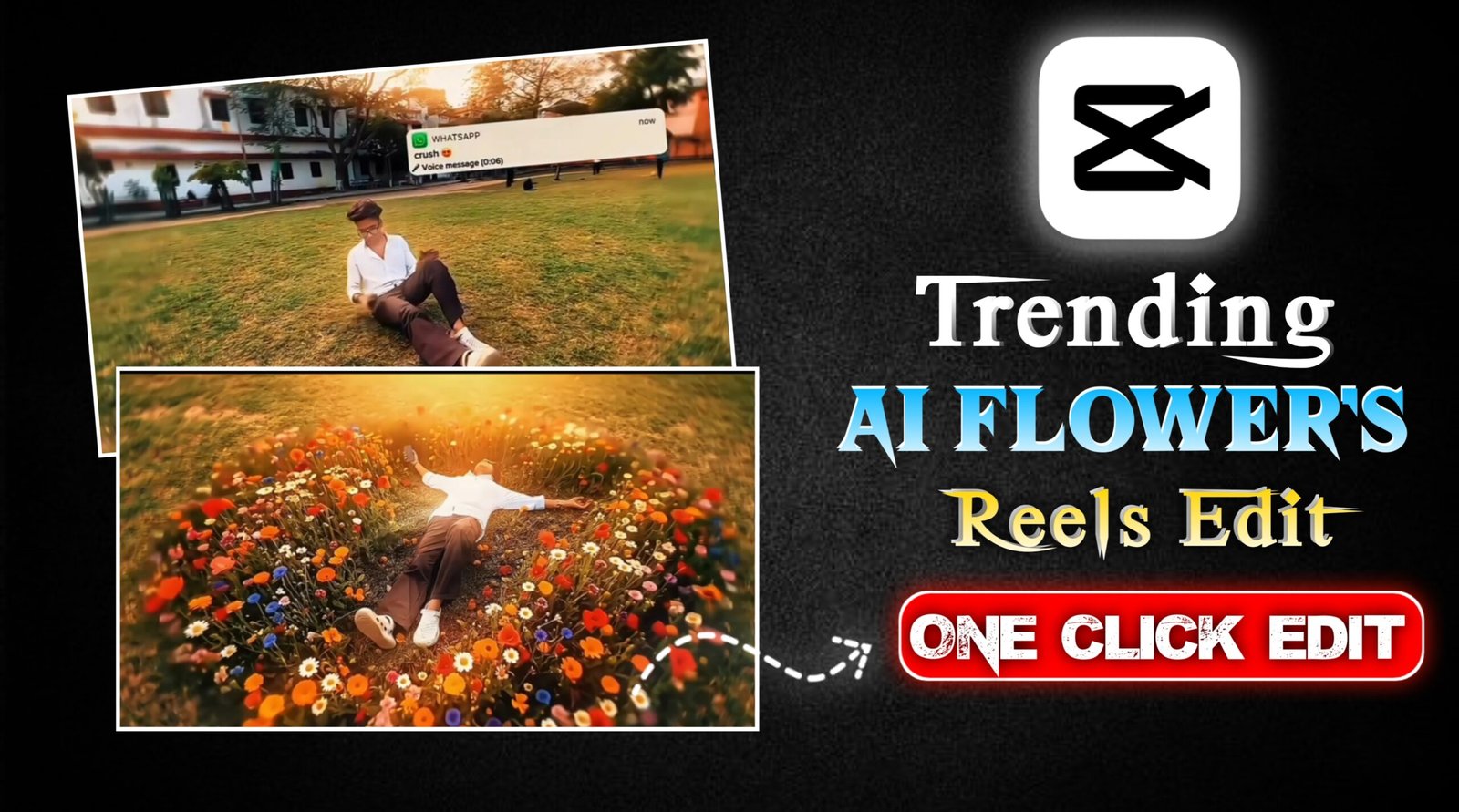
Viral Ai Boys Sad Flower’s Reels Editing Tutorial – So friends, in today’s article, I am going to show you how to edit these kinds of viral, trending videos. These videos are currently spreading across social media at an incredible pace. You might have seen this style of video a month or two ago it is an older trend but it has recently resurfaced, and people are creating them in large numbers, with everyone’s videos garnering millions of views. You might be thinking that creating such videos would be extremely difficult; however, let me assure you that it is quite simple. All you need to do is shoot a nice video clip you can film it in a garden, on a road, or anywhere else you prefer, perhaps while sitting down, just as demonstrated in the preview. Next, simply take a screenshot of the final frame of your video; using that screenshot, we will generate an image, which we will then convert back into a video. It is a remarkably easy process. Furthermore, I will walk you through everything you need to know including the specific prompts and the step-by-step procedure required to create this right here in today’s article. So, simply read through this article carefully from start to finish, and you will be able to understand the entire process completely.
Details Of Viral Ai Boys Sad Flower’s Edit
So friends, if we talk about the details of this type of viral video, let me tell you that this video depicts a “sad reel” in which a boy appears deeply sorrowful; he is shown sitting on a road or in a garden, whereupon flowers magically emerge from him. This animation looks quite impressive. Creating such a video is actually quite simple. If you imagine that making a video like this might take hours of your time, that is not the case at all; nowadays, you can create it with just a single click using AI. To generate it, you will need two or three specific prompts—prompts that I will be providing to you right here in today’s article. So, simply read this article through carefully and completely; only then will you be able to understand all the steps involved.
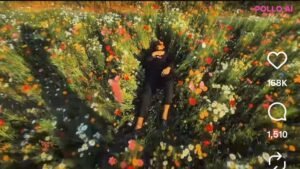
Maintain visual continuity across the shot: same appearance, clothing, pose, scale, environment, lighting direction, shadows, and camera perspective.
Style
Ultra-realistic cinematic live-action with soft fantasy realism. Natural daylight, smooth motion, shallow depth of field, subtle cinematic color grading, gentle film grain.
Opening
The scene begins with the street fully covered in. flowers. Plants gently sway from the start as if moved by a calm breeze. Loose petals slowly drift through the air, creating a peaceful, atmospheric flow.
Camera Movement
The camera moves slowly in a smooth orbital path around the subject, with a subtle dolly motion.
Movement is stable, elegant, and continuous, maintaining a cinematic rhythm.
Transformation
As the camera continues its orbit, the subject’s upper body gradually begins to dissolve into thousands of red rose petals.
The transformation starts softly at the shoulders and chest, breaking into petals rather than fragments, with no harsh edges. Petals form naturally from the body surface, blending seamlessly into the surrounding flowers.
The rose petals catch the wind and lift into the air, swirling gently and flowing toward the right side of the frame, carried by the breeze.
The lower body remains grounded and visually consistent while the upper body fully transitions into floating petals.
Motion & Atmosphere
Flower plants continue swaying throughout. Petals move with realistic wind physics, layered depth, and soft motion blur. No sudden bursts – everything feels smooth, calm, and poetic.
Ending
The camera completes its slow orbit as the last petals drift away to the right, leaving the flower-filler! environment gently moving in the wind.
Page
Phote arompt
dit the uploader
Strictly keep the original person exactly the same.
Do not change face, skin tone, hairstyle, clothes, body posture or proportions.
Do not zoom in.
Do not crop.
Keep the exact same camera height and body size as original image.
Replace only the background and ground.
The person must be lying naturally inside a very dense wild flower field.
Camera must remain high top view but far enough to show full body clearly,
No zoomed perspective.
No dramatic lens distortion.
Natural 35mm lens look.
Flowers must be tall long-stem wildflowers, waist to chest height.
Extremely dense and tightly packed around the body.
Flowers touching shoulders, legs and arms naturally.
The person should look partially surrounded but not artificially covered.
No empty ground visible.
No road.
No trees.
No background blur.
Use realistic natural flowers (cosmos, wild daisies, small sunflower type, poppy style).
Colors: pink, white, yellow, red, orange.
Add realistic green stems and leaves.
Golden hour sunlight.
Natural shadow direction matching original body lighting.
Ultra photorealistic.
RAW photo style.
DSLR natural photography.
High texture detail.
No painting style.
No CGI look.
How To Create Image
So friends, to create such an image, the first thing you have to do is, I will tell you some steps below, you just have to follow them carefully, then you will be able to create it.
- First of all you have to shoot a video and after shooting you have to take it to any editing app and there you have to take a screenshot of the video where you are lying on the ground.You have to crop that screenshot properly.
- Now you have to type on the Create Image button on the website and then you have to copy the prompt, then you have to upload your screenshot image, send it with the prompt and your image will be created.
- Now just do the simple image that you have created.
How To Create Video :-
So now I will tell you some steps to create such a video, please follow them carefully.
- And you have to open the Flow ai website and there you have to click on the video in the settings and first select the video, in the second you have to select the frame and in the third you have to select 16.9 and in the fourth you have to select 1x
- Now you will get a start and end frame there, you have to upload the first image in the start frame and then you have to upload the image generated in the end frame and Now you have to paste the prompt I have given you on the website and send it, your video will be created.
- You just need to save your video.
How To Edit Video in Any Video Editing App
So friends, now you must have generated the video and the photo, your video must have been generated as well, now you have to edit it.So you might not even know how to edit, so let me tell you that too.So first of all you have to shoot your video properly and open it in any editing app.And there, when you are lying on the ground, you have to split the video at that place.And then next to that you have to add the AI video that you have generated and adjust both of them and you can apply the mix effect by clicking on the transitions.This will make your video look like that and you can add a song in the background. If you want to make any other edits in it, you can do that too. You will find a full tutorial for it on YouTube.
Conclusion
So friends, today in this article I have told you the complete process of editing such viral videos and you can make it absolutely free and I have also told you how to edit it. You know the complete steps for that too, so just follow whatever I told you.If you face any problem in making such a video, then for this you can search vm edit on YouTube and you will find the video there, please watch that video, in that I have explained its complete editing process.

Wow that was unusual. I just wrote an extremely long
comment but after I clicked submit my comment didn’t appear.
Grrrr… well I’m not writing all that over again. Anyhow, just wanted to say great blog!
❤️