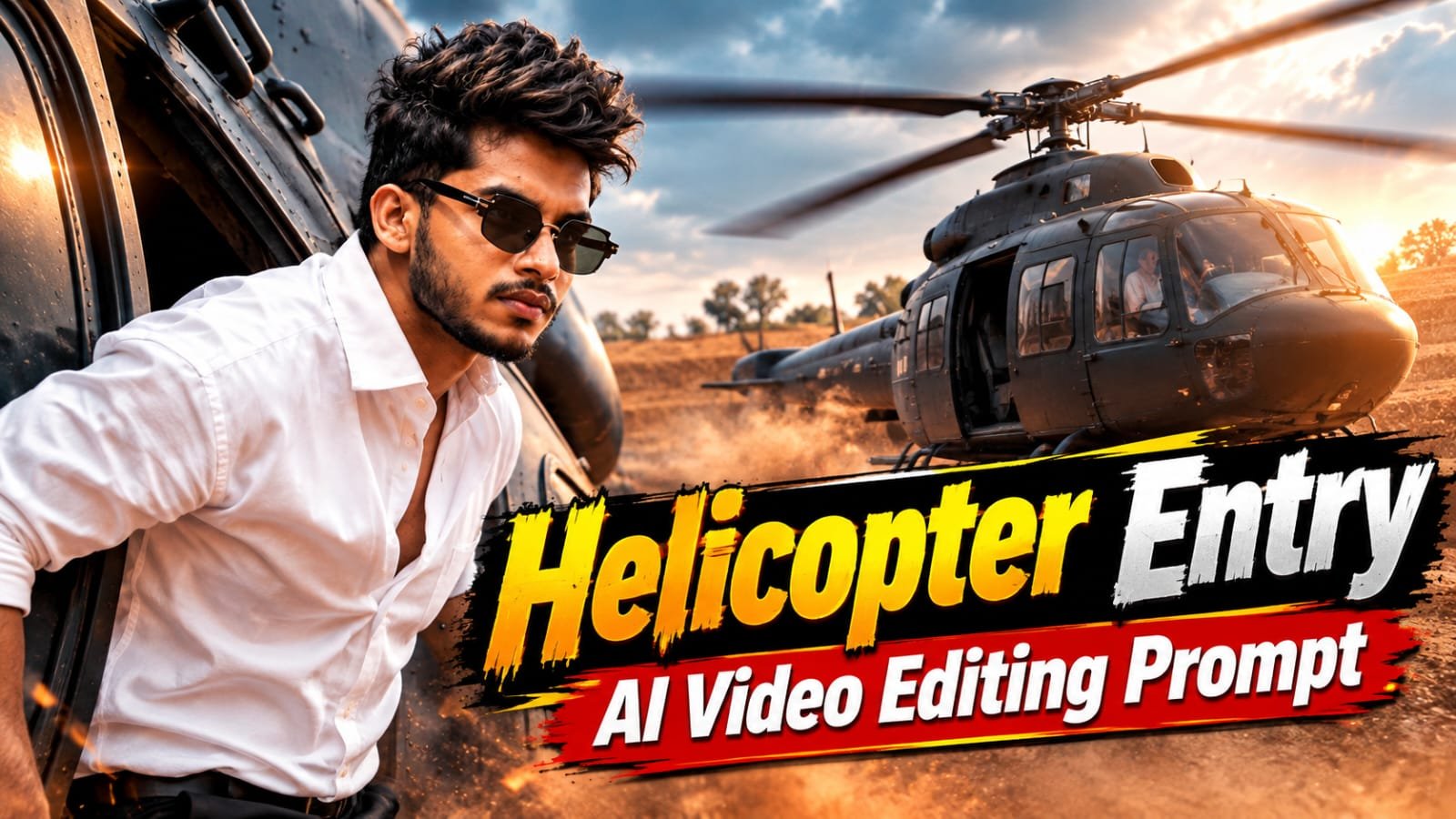
So friends, in today’s article, I am going to explain the process of editing a highly trending Instagram Reel one you have likely seen on the platform. Videos featuring a movie-style helicopter entry specifically the one involving Thalapathy Vijay are going viral. People are using AI to generate these videos using their own photos and uploading them to social media; the result looks like a realistic “hero entry.” These videos are garnering millions of views and likes, and many people are eager to create them. If you also want to create such a video using just a single photo of yourself, I will walk you through the entire process in this article. I will also provide the specific prompt needed to create it, making the process incredibly easy and completely free. While others might have shown you paid methods, here you can create these videos at no cost. Let’s get started please read the article below carefully to fully understand the entire process.
Details Of Viral Helicopter Ai Video Editing
So guys, you are likely familiar with the viral helicopter video featuring Vijay Thalapathy; it is actually a real scene from the movie where he plays the lead role. People are creating their own versions of this showcasing a “Hero” look in their Reels by using AI-generated content. These uploads are garnering millions of views. To create this yourself, all you need is a simple photo, and I will provide a prompt that makes the process incredibly easy. You might recall the trends based on the movie Master such as the clips of him on the metro or the one where he runs to catch a bus which went viral. However, right now, the video edit featuring the dramatic helicopter entry is trending rapidly, so let me show you how to create it.
Charcter Seet Image Create
So friends, here I have given you a prompt to create a character set image, with the help of which you will be able to create a character set image of your photo from every angle.In which your entire scene till landing in the helicopter is shown in a single video, so if you make it according to this frame then your perfect video will be generated.
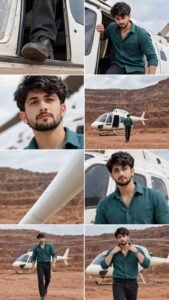
Use Image 1 as the PRIMARY and ABSOLUTE CHARACTER IDENTITY REFERENCE. REFERENCE IMAGE 2 — MASTER SCENE / STORYBOARD REFERENCE. Use Image 2 as the EXACT visual composition, scene, camera, framing, pose, environment and cinematic-style reference. Create a highly realistic cinematic vertical 9:16 image/video that recreates the visual sequence shown in Image 2 as accurately as possible. IMPORTANT: Do NOT redesign the character. Do NOT create a different person. Preserve the exact facial identity from Image 1, including exact face shape, facial proportions, eyes, eyebrows, nose, lips, jawline, beard, hairstyle, hairline, skin tone, age appearance and recognizable facial features. Preserve the exact clothing and accessories from Image 1: teal shirt, black trousers, wristwatch, bracelet and all visible accessories. Keep realistic fabric texture and natural clothing folds. MASTER SCENE: A large reddish-brown open quarry with dramatic layered/terraced rocky terrain under a pale cloudy sky. A realistic white helicopter is parked in the quarry with its side doorway open. RECREATE THE STORYBOARD SHOTS EXACTLY IN THIS VISUAL ORDER: SHOT 1 — 0.00–1.90s: EXTREME TIGHT CLOSE-UP. Show only the character’s lower leg and dark shoe stepping outward through the open side doorway of the white helicopter. Camera extremely close to the helicopter doorway and positioned very low. Tight vertical composition. Realistic shoe, trouser fabric and helicopter doorway details. Slow controlled cinematic movement feeling. SHOT 2 — 1.90–3.70s: CLOSE SIDE SHOT. The exact same character is emerging from the helicopter doorway. One hand firmly grips the helicopter doorway/frame. Upper body leans outward. Head slightly lowered. White helicopter dominates the surrounding frame. Low-angle cinematic perspective. SHOT 3 — 3.70–5.10s: EXTREME CLOSE-UP PORTRAIT. Show the character’s exact face from Image 1. Serious, calm, composed expression. No smile. Head and chin slightly raised. Eyes looking slightly upward/forward. Pale sky and a softly blurred portion of the helicopter in the background. Very shallow depth of field. Highly realistic skin and facial texture. SHOT 4 — 5.10–6.50s: WIDE ESTABLISHING SHOT. Reveal the complete white helicopter parked in the huge reddish-brown quarry. The character stands beside the helicopter and begins walking away from it. Show layered quarry cliffs/terraced earth formations. Pale cloudy sky. Warm natural earthy tones. Character remains clearly recognizable. SHOT 5 — 6.50–7.50s: EXTREME CLOSE-UP OF HELICOPTER STRUCTURE. A pale white helicopter structural element crosses the frame diagonally, matching the reference composition. Keep the quarry softly blurred in the background. Do not add unnecessary mechanical components. SHOT 6 — 7.50–8.70s: MEDIUM CLOSE-UP. Character stands beside the white helicopter. Face toward camera. Serious, controlled expression. Helicopter clearly visible behind him. Chest/eye-level camera. Cinematic shallow depth of field. Natural outdoor lighting. SHOT 7 — 8.70–9.45s: WIDER FULL-BODY SHOT. Character walks directly toward the camera across the reddish quarry terrain. Upright confident posture. Natural arm movement. One foot naturally forward. Realistic walking stance and foot placement. Helicopter remains visible behind him. SHOT 8 — 9.45–10.00s: MEDIUM/FULL-BODY CINEMATIC SHOT. Continue the exact forward movement. Character begins raising BOTH hands toward his shirt collar. Hands are just beginning to reach the collar. Serious, stylish cinematic expression. This must look like the exact continuation of Shot 7. FINAL CONTINUITY: The final frame must end with the character moving forward while both hands are beginning to rise toward his collar. Do not reset his body position. Do not change his face. Do not change his clothing. Do not change the environment. VISUAL STYLE: Photorealistic cinematic action-film photography. Ultra-realistic human anatomy. Natural skin pores and facial texture. Realistic teal fabric. Realistic black trousers. Realistic white helicopter materials. Natural outdoor lighting. Subtle atmospheric dust. Cinematic depth of field. Natural motion-blur feeling. High dynamic range. Professional action-film cinematography. Realistic perspective. High detail. Sharp character face. Vertical 9:16 composition. 4K/8K quality. STRICT NEGATIVE PROMPT: different person, identity change, face change, face morphing, facial distortion, altered facial structure, different eyes, different nose, different lips, different jawline, different beard, different hairstyle, different hairline, skin tone change, age change, body proportion change, body shape change, clothing change, different shirt, different shirt color, missing wristwatch, missing bracelet, accessory change, duplicate character, extra person, extra limbs, extra fingers, fused fingers, malformed hands, malformed feet, distorted body, unnatural walking, sliding feet, floating feet, robotic movement, CGI, cartoon, anime, illustration, plastic skin, fake face, blurry face, low detail, over-smoothed skin, excessive sharpening, fake expression, smile, background replacement, different helicopter, extra helicopter, helicopter deformation, changing quarry, random objects, random camera angle, random zoom, random rotation, excessive camera shake, flickering, temporal inconsistency, incorrect shot order, incorrect pose, incorrect framing, unrealistic perspective. ABSOLUTE REFERENCE PRIORITY: Image 1 = EXACT CHARACTER IDENTITY. Image 2 = EXACT SCENE, COMPOSITION, POSE, CAMERA AND VISUAL REFERENCE. Do not reinterpret the reference. Do not redesign anything. Match the reference as closely as possible while replacing the reference character with the exact person from Image 1. IMPORTANT FINAL INSTRUCTION: Remove all unnecessary gaps, blank spaces and interruptions between the prompt sections. Keep the entire prompt as one continuous, seamless instruction while preserving the shot order and all details.
Helicopter Entry Video Prompt
So this prompt which you are seeing, with the help of this prompt you will be able to make your helicopter entry video with Flow AI, the complete process of which I have told you below, so you guys read it carefully.
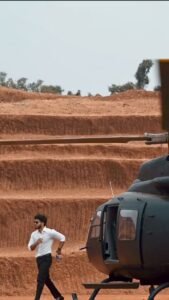
How To Create Viral Helicopter Ai video & Photo
So, friends, to make such a helicopter entry video, first you need to copy the first prompt I provided above and create your character seat image using the ChatGPT app. First, open the ChatGPT app, click the plus icon, select your image, paste the prompt, and your character seat image will be generated. Download it. After the character seat image is created, return to the website and copy the video prompt. Click the Create Your Video button. Then, click New Project, which will take you to Flow AI. Click the plus icon and upload your photo and character seat image. Then, paste the video prompt, set the settings to 9×16 and 720p, and send it. Your video will be generated in a few seconds, you can save the video.
How to Edit Helicopter Entry ai video
Once you have generated the helicopter or entry video, you will notice that the footage moves quickly in certain sections; you need to add the song and your video clips into CapCut (or any other editing app) accordingly. Apply slow-motion effects to match the song whenever you need to slow down a specific part, simply tap on the video layer to access the speed option. You can adjust the speed to 0.8x, 0.7x, or 0.9x or whatever setting suits your preference and apply the slow-motion effect exactly where needed. This process will result in a perfect video ready for upload to your social media platforms. Fine-tuning the slow-motion to your liking will significantly enhance the video, making it look polished and professional.
Conclusion
So friends, in this article, I have explained the entire process of editing a video featuring a helicopter AI entry specifically the kind inspired by the scene where Thalapathy Vijay makes a hero entrance via helicopter. These types of videos are currently very popular, which is why so many people are creating them. I have shared the complete editing process for this Thalapathy Vijay-style helicopter entry video with you for free; using this method, you can create a similar entry video using just one of your own photos. I hope you have understood the process and perhaps even created such a video. If you have, go ahead and upload it to social media platforms, as this style is currently trending heavily.